

Albion Online Loot Logger: Track Your Guild's Loot
A loot logger records every item players pick up, so a guild can see who looted what after a fight, a dungeon or a ganking session. With Albion Free Market you record the loot with the AFM Data Client while you play, export it as an AFM CSV file, and open that file in the Loot Logger in your browser. The Loot Logger shows each pickup with its source and value, and follows it afterwards: kept by the looter, lost when the looter died, or donated to a guild chest.
You do not need to sign in to use it, and your files stay in your browser.
What you need
- The AFM Data Client, the free desktop app for Windows, Linux and macOS. The Data Client tutorial shows how to install it and set up capture.
- A browser to open the Loot Logger.
- Optional: the guild chest log, copied from the game, if you want to see which loot was handed in.
Step 1: Record loot with the Data Client
Leave the Data Client running while you play. Its Activity page records your activity, loot included, and recording is on by default (the button at the top of Activity says Disable recording while it is on).
For each pickup it saves the time, the server, the player who picked it up with their guild and alliance, the source (a mob, a chest or another player) with that player's guild and alliance, the zone, the item, its quality, the amount and its estimated market value (EMV).
It does not only see your own pickups. The game also tells your client about loot that other players pick up, and the Data Client records those too. Whose pickups a list shows depends on the scope you choose in the Loot tab:
| Scope | What it includes |
|---|---|
| Personal | Your pickups, and pickups other players made from you |
| Party | The same for you and your party members |
| Everyone | Every pickup your client saw, including other guilds and enemies |
Step 2: Export the AFM CSV
The export button sits above each loot list in the Activity page:
- History: pick a session, open its Loot tab and choose the scope. This is the usual choice after a fight or a dungeon run.
- Current: the Loot panel of the session you are playing now.
- Items: loot from all your sessions in a period (All time, Today, Yesterday, Last 7 days, Last 30 days or a custom range), with the same scopes.
Click Export loot… and choose AFM CSV. The Data Client asks for the CSV separator and decimal symbol, suggesting the ones of your system language, and then where to save the file. The Loot Logger detects the separator on its own. The file holds every pickup of the list you exported from, across all its pages. Group by item only changes what you see; the export still writes one line per pickup.
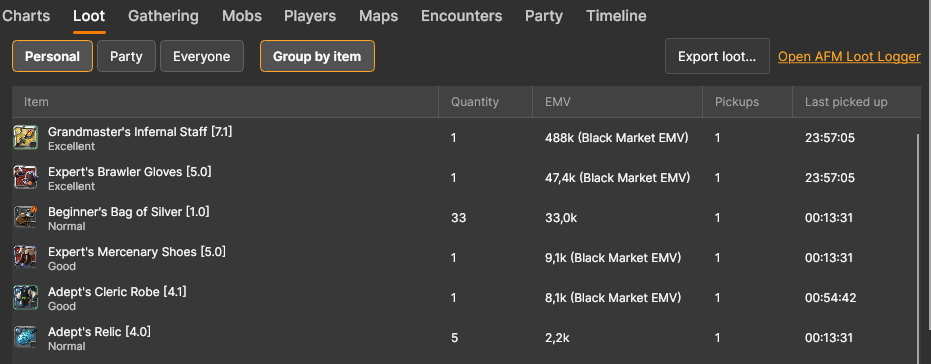
In the History Loot tab, Open AFM Loot Logger next to the button opens the website.
The same menu has a second format, Loot Logger Viewer (.txt). It is for the community Loot Logger Viewer that some guilds already use. The Albion Free Market Loot Logger reads the AFM CSV, so pick that one for it.
Step 3: Open the file in the Loot Logger
- Go to albionfreemarket.com/loot-logger and open the Loot Logger tab. The Intro tab explains the same ideas in short.
- Drop your files on the page or click Choose Files. You can add several files at once, and chest logs (next step) go in the same place.
- Each file shows Ready when it was read without problems. Import diagnostics lists anything that could not be read.
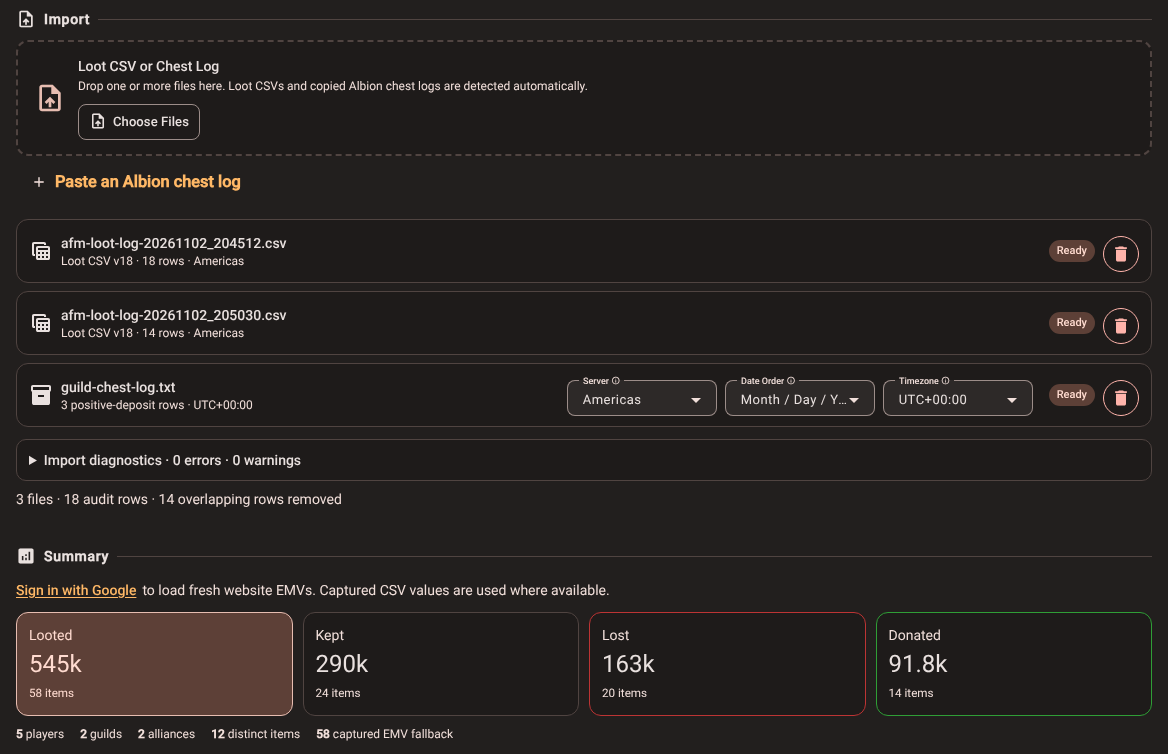
The example above uses made-up players: a guild group, one of them killed and looted by an enemy, the enemy killed in turn, and some loot deposited in the guild chest afterwards.
The files are read in your browser. Only item IDs and the server are sent to Albion Free Market, to look up item values when you are signed in. Player names never leave your computer.
Rows that are exactly the same in two files are counted once ("overlapping rows removed"). That happens when exports from the same Data Client overlap, for example a session export and an Items export that covers the same evening.
Recording as a group
Two Data Clients that see the same pickup record it at slightly different times, so the Loot Logger sees two different rows and counts the pickup twice. When several members record the same content, use one of these setups:
- One recorder, Everyone scope. One member, often the shotcaller or a scout, records with the Everyone scope and shares the export. This also shows enemies looting your members.
- Every member, Personal scope. Each member exports their own Personal list and you import all files together. Each pickup appears in one file only, unless one member picked up loot from another member.
Do not mix several Everyone or Party exports from different members for the same fight, or the totals count the same loot more than once.
Step 4: Add the guild chest log
To see which loot was handed in, add the chest log of the guild chest:
- In the game, open the chest's log and use Copy to Clipboard.
- On the Loot Logger, open Paste an Albion chest log, paste the rows and click Import pasted log. You can also save the text as a file and drop it with your CSVs.
- Check the three settings on the chest log row. The chest log carries no server and no time zone, so the page fills in Server from your loot files and Timezone from your browser. Date Order (day first or month first) is detected when a date in the log can only be read one way, and otherwise follows your browser's language. A wrong time zone shifts every deposit by hours, and deposits then fail to match the loot they belong to.
- If an item name in the log matches more than one item, the page asks you to pick the right one once, and applies it to every row with that name.
Only deposits count. Withdrawals are ignored, and so are deposits that do not match earlier loot by the same player, so the guild's other chest traffic does not end up in the loot totals.
Kept, Lost and Donated
Every pickup ends in one of three outcomes, and Looted is always Kept plus Lost plus Donated:
| Outcome | What it means |
|---|---|
| Kept | No later loss or chest deposit was found. It stays with the looter in the ledger, which does not prove they still have it: they may have sold it or put it in their own bank. |
| Lost | Another player later picked up the same item with this player as the source. This normally means the looter died and was looted. |
| Donated | The same player later deposited the item in the imported chest log. |
How the page matches them:
- Everything is matched in time order (UTC). A loss or a deposit uses up that player's earlier pickups of the same item on the same server, oldest first.
- A loss also needs the same quality. A chest deposit does not, because the copied chest log does not show quality reliably.
- Guild and alliance names are only used for filters and totals, not for matching, so a player who changes guild in the middle of the log is still followed.
- A stack can be split: part of it kept, part lost, part donated. Each part counts once.
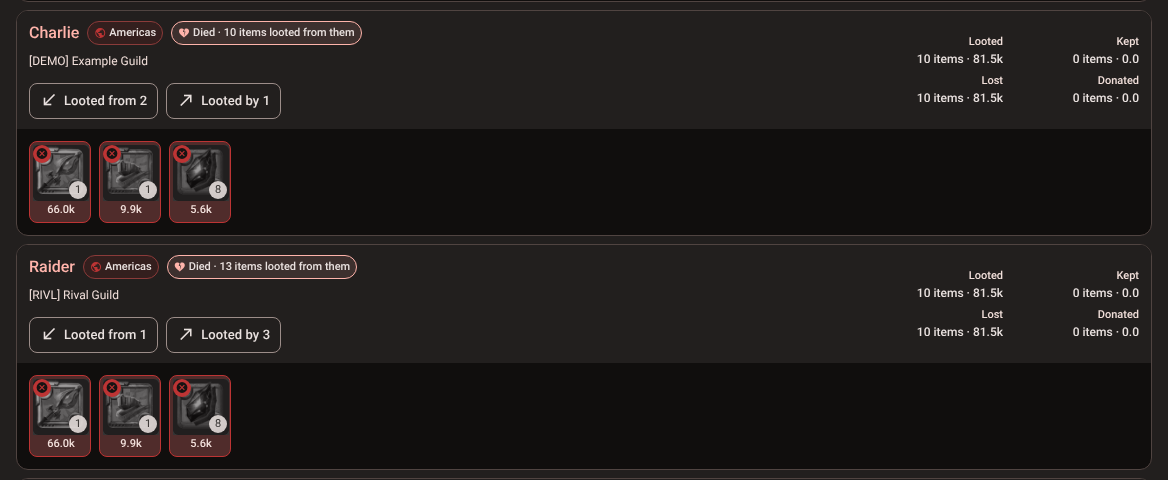
- Gear a player loses without having looted it during the log (what they wore, for example) does not count as Lost for them. It counts as loot for whoever picked it up, and the "Died" chip on the dead player includes it.
Click any item to see its history: who picked it up, from where, and what happened to it next.
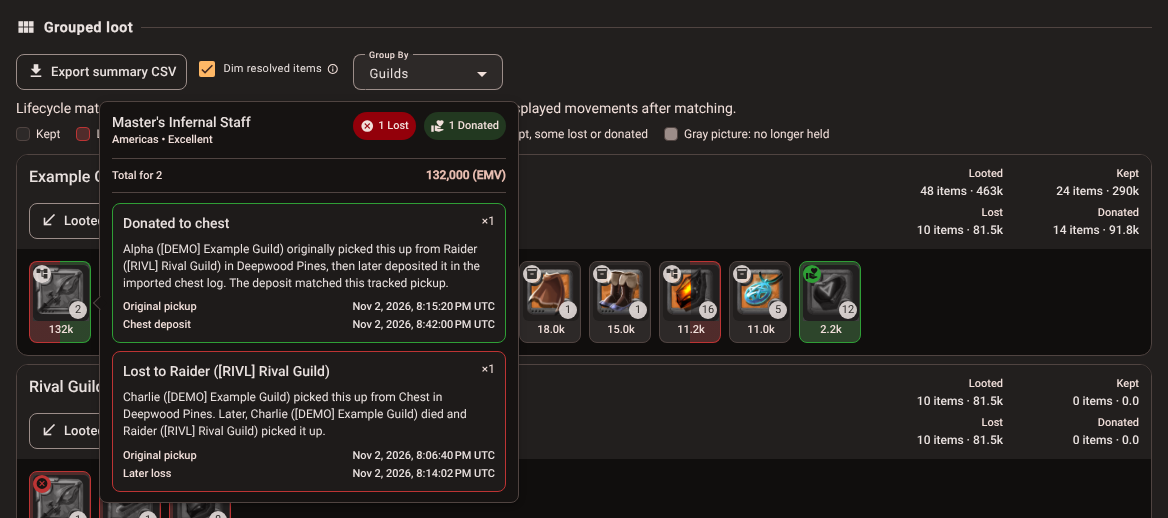
Reading the results
- Summary shows Looted, Kept, Lost and Donated with item counts and values, and how many players, guilds, alliances and distinct items the files contain. With files from more than one server it adds a line per server.
- Filters narrow everything below them: server, outcome, player, guild, alliance, item name, item category, tier, enchantment, quality, source type (player, mob, chest), zone, party status, value source and a date and time range (UTC). Filters never change the matching, only what is shown.
- Grouped loot groups the items by Players, Guilds or Alliances. Each group shows its totals, the item tiles and two buttons: Looted from (the players, mobs and chests they looted) and Looted by (the players who looted them). Tile colors follow the outcome, and Dim resolved items grays out items that were later lost or donated, so what is still held stands out.
- A player whose name is red died while logging; the chip next to the name says how many items were looted from them.
- Audit trail lists every pickup with its time, looter, item, outcome, amount, value and source, plus the file and line it came from, so anyone can check a number.
- Export summary CSV saves the group totals and Export audit CSV saves the pickup list, both with your current filters. Use them for loot splits, regear payouts or a spreadsheet of who handed in what.
How items are valued
A stack's value is its amount times the item's EMV on that server and at that quality.
- Signed in (Sign in with Google at the top of the summary), the page loads current EMVs from Albion Free Market. It uses the Black Market EMV when there is one and the regular EMV otherwise. Pickups with an unknown quality use the average of qualities 1 to 4.
- Signed out, or when no current value exists, it uses the value the Data Client wrote in the CSV when it recorded the pickup ("Captured fallback").
- Items with no value at all are counted as "missing EMV" in the summary, so you know the totals are low by those items.
To check what loot is worth on the market before you sell it, the Market Prices page shows current prices in every city, and the silver and fame per hour guide explains the session totals the Data Client shows for the same recordings.